BOQ + Blueprints Workflow
How to run a full estimate using a BOQ Excel file and blueprint PDF drawings.
BOQ + Blueprints Workflow
The BOQ + Blueprints workflow is the most complete way to use Xtimo AI. You provide your BOQ (Bill of Quantities) as an Excel file and your drawings as PDFs. Xtimo AI reads the BOQ to understand your scope, extracts quantities from the blueprints, and matches prices from your Price Library — producing a fully priced BOQ ready to export.
Before you start
You need:
- Your BOQ in Excel format (.xlsx or .xls) — this defines the scope and structure of the estimate
- Your blueprint drawings as PDF files — Xtimo AI reads these to extract quantities
- A Price Library set up in your Xtimo AI account — used to find unit rates for each item
Step 1: Create a new project
- Go to Projects and click + New Project
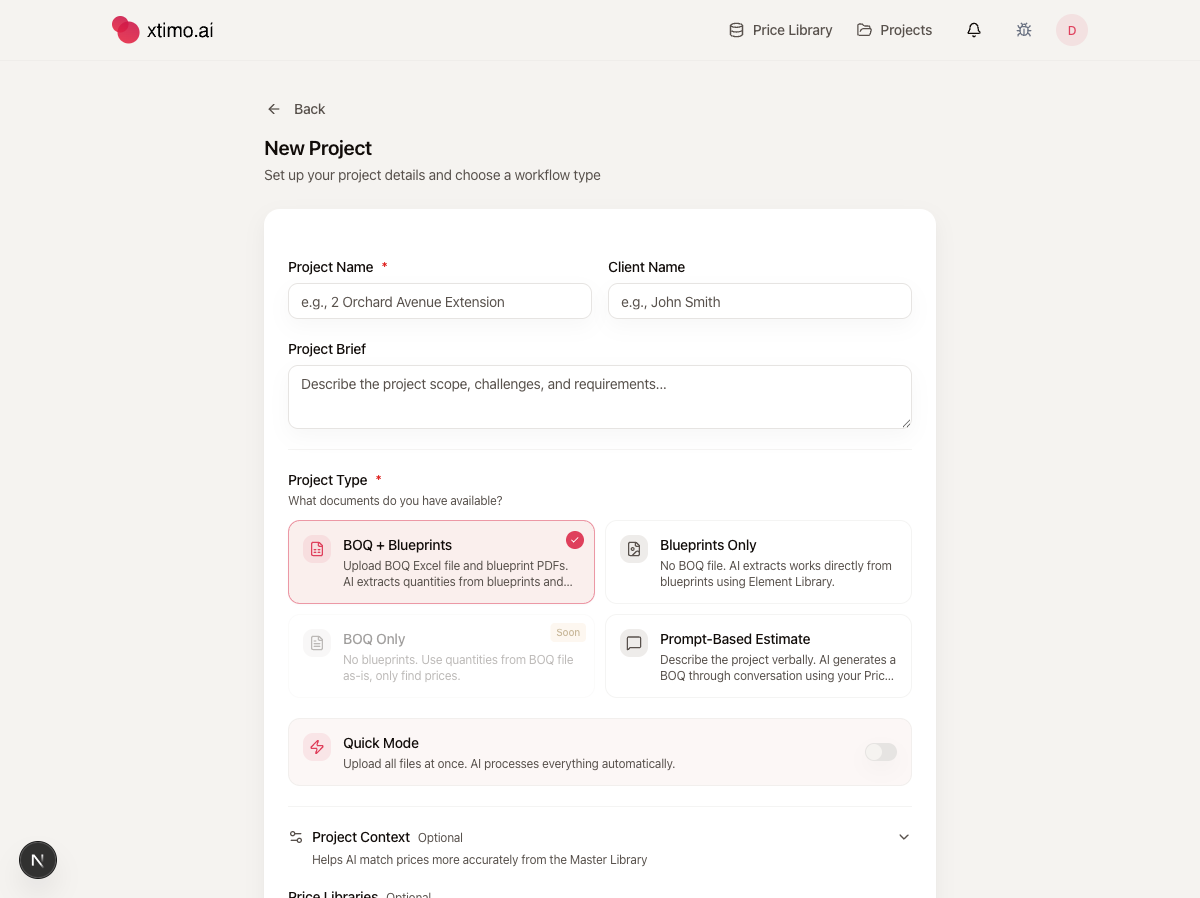
- Enter a Project Name (required) and optionally a Client Name and Project Brief
- Under Project Type, select BOQ + Blueprints
- Choose your processing mode (see below)
- Click Start Workflow
Quick Mode vs Step-by-Step Mode
The Quick Mode toggle controls how much you review during processing:
- Quick Mode off — you review and confirm at each step before moving to the next. Use this when you want to check column detection on the BOQ or verify blueprint page classification before the AI proceeds.
- Quick Mode on — you upload all files at once and Xtimo AI processes everything automatically. Use this when you trust the files are clean and want results faster.
Quick Mode
With Quick Mode enabled, you upload all files on a single screen.
- Upload your BOQ Excel file — select the sheet that contains your BOQ if the workbook has multiple sheets
- Upload your Blueprint PDFs — you can add multiple files at once
- Click Start Processing
Xtimo AI then runs through the following stages automatically:
- Reading and structuring the BOQ
- Classifying blueprint pages (floor plans, elevations, sections, schedules)
- Detecting measurement patterns in the drawings
- Extracting quantities for each BOQ item
- Matching unit rates from your Price Library
- Running the Final Audit
When complete, you are taken directly to the Final Audit page.
Step-by-Step Mode
Step-by-Step mode walks you through each stage individually, letting you review before continuing.
Step 1: BOQ Analysis
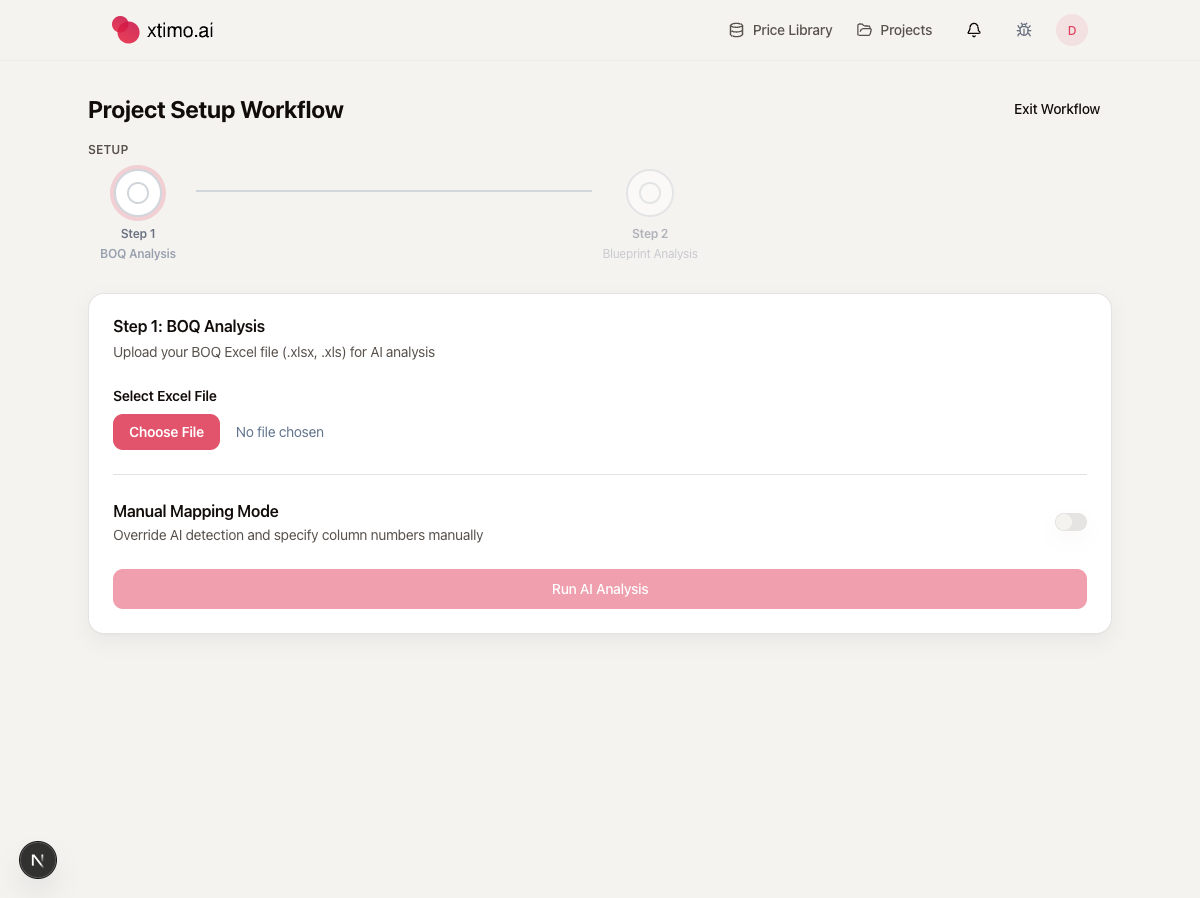
- Click Choose File and select your BOQ Excel file (.xlsx or .xls)
- Xtimo AI detects columns automatically — item codes, descriptions, quantities, units, and rates
- If column detection is not correct, enable Manual Mapping Mode to assign columns yourself
- Click Run AI Analysis
After analysis, you see the detected BOQ structure and can review items before moving to Step 2.
Step 2: Blueprint Analysis
- Upload your blueprint PDF files
- Xtimo AI classifies each page:
- Floor plans — used for area and perimeter measurements
- Elevations and sections — used for height and wall measurements
- Schedules — used for enumerated items (doors, windows, fixtures)
- Review the page classifications — you can reclassify any page or mark pages to skip
- Click Run Analysis — Xtimo AI reads each drawing and extracts quantities
Step 3: Quantity & Price Finding
This step runs automatically. No action is needed from you.
- Quantities extracted from blueprints are matched to BOQ items
- Unit rates are looked up from your selected Price Library
- When complete, you move to Step 4
Step 4: Final Audit
The Final Audit is where you review the finished BOQ before export. See Final Audit for a full walkthrough of what to expect.
After the audit
Once you are satisfied with the BOQ:
- Click Export BOQ to download your priced BOQ as an Excel file
- Use the AI Assistant to make further edits or ask questions
- Open Project Summary to see the full estimate breakdown by trade and section
Common Issues
- BOQ columns detected incorrectly — enable Manual Mapping Mode in Step 1 to assign columns manually
- Blueprint pages classified as the wrong type — in Step-by-Step mode, reclassify them before running analysis
- No prices found for some items — check that your Price Library contains rates for those trades, or use the AI Assistant to find and assign rates manually
- Quantities look wrong — check that the correct drawing scale is being used; Xtimo AI reads scale information from the PDF metadata or title block